How to Create Key Pair?
Key pair is a security feature used for secure authentication and access to virtual instances. A key pair works like a digital lock and key. The lock (public key) is used to secure a virtual instance, and the key (private key) is kept secret and used to unlock and access the instance securely.
Step 1
Log in to the xconnect portal. (opens in a new tab)
Step 2
Under the Project tab, open the Compute tab and click on Key Pairs.
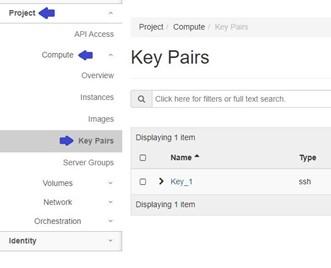
Specify Key Pair parameters:
-
Key Pair Name: Assign a name to the Key Pair.
-
Key Type: Select key type (i.e., SSH Key or X509 certificate).
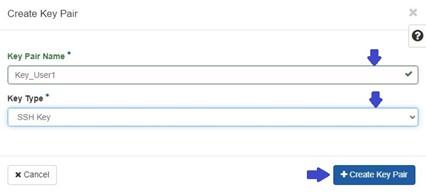
Then click on Create Key Pair.
After creating a key pair, the private key is automatically generated and downloaded to your system. It is important to securely store this automatically downloaded private key file as it grants access to the instances associated with the key pair.
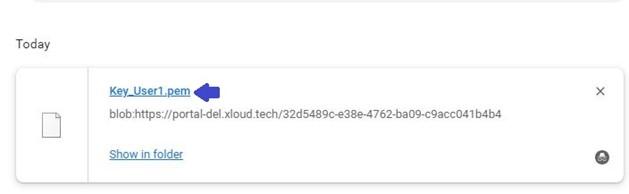
After creating Key Pair, you can locate it under "Project" tab, go to "Compute" tab, and click on "Key Pairs".
Step 3
To connect to VM using key
-
Open a terminal or command prompt: Launch a terminal or command prompt on your local machine.
-
SSH into the VM: Use the SSH command along with the private key file to connect to the VM. Here's an example command:
ssh -i /path/to/private_key.pem username@VM_IP_address
Replace /path/to/private_key.pem with the actual path to your private key file, username with the appropriate username for the VM, and VM_IP_address with the IP address or hostname of the VM.
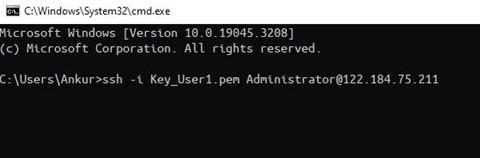
-
If this is the first time you connect to a VM, you will see a warning about an unknown host:
The authenticity of host '122.184.75.211 (122.184.75.211)' can't be established.
ECDSA key fingerprint is SHA256:PoaSwqxRc8g6iOXtiH7ayGHpSN0MXwUfWHkGgpLELJ8.
Are you sure you want to continue connecting (yes/no)?
Type
yesin the terminal and pressEnter. -
Once you successfully establish the SSH connection, a new window will open, granting you access to the VM environment.