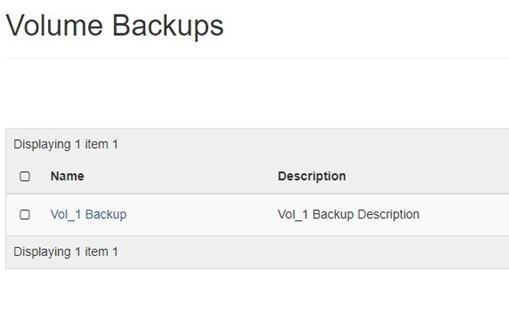
How to Create Backup of Volume?
Backup of a volume refers to a complete copy of the volume's data that is stored in a separate location from where snapshot is saved.
Step 1
Log in to the xconnect portal. (opens in a new tab)
Step 2
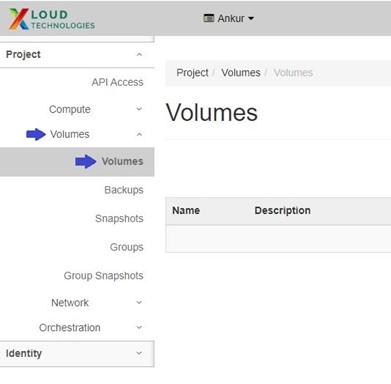
Under the Project tab, open the Volumes tab and click on Volumes.
Step 3
To create a backup of a volume, click on the "More Options" arrow for the volume. This will provide additional actions specific to that volume.
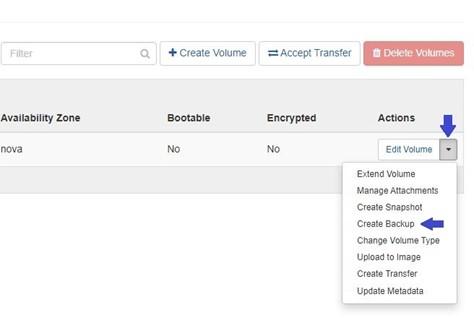
Click on the "Create Backup" button.
Step 4
Enter the following parameters:
Backup Name: Specify a name for the backup.
Description: Optionally, provide a brief description for the backup. (For e.g., Vol_1 Backup Description)
Optionally, In the Backup Snapshot section, you can select a snapshot of a particular volume to create a backup of that snapshot.
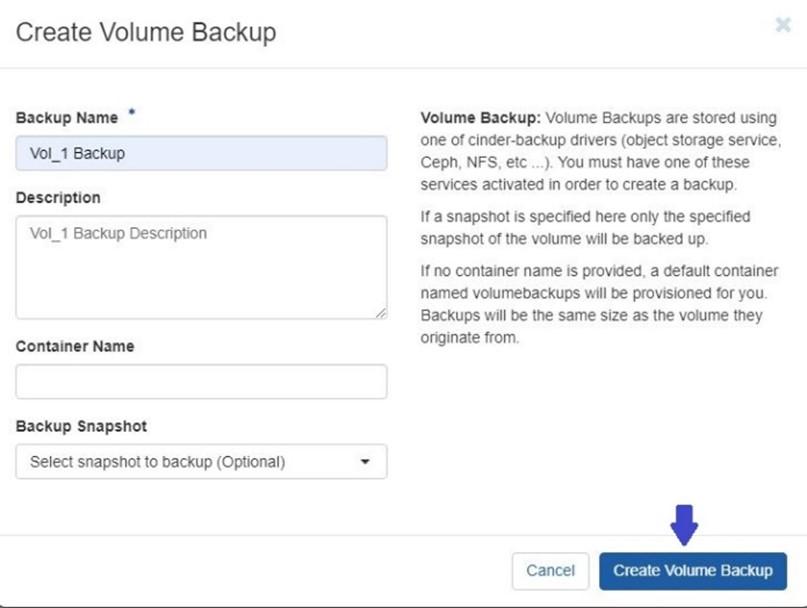
To finalize the process click Create Volume Backup.
Once you have created a backup of a volume, you can easily locate it in the Project tab, open the Volumes tab, and click on Backup.